Make a little
room for today.
Bring the day’s weather, calendar, and to-dos into Apple Notes. Add a memo when something is worth keeping.
Small setup required: seven weekday lists in Reminders. No extra third-party apps.


A home for the day.
A shortcut for the little things.
Set up your weekdays
Create the seven named weekday lists in Reminders, then add your tasks to the appropriate day.
Create your daily journal
Run Daily Journal to bring your agenda, weather, and to-dos together in a note.
Keep adding as you go
Use the Control Centre companion to add memos, make a quick note, or refresh today’s to-dos.
A small setup before your first day.
In Reminders, create seven separate lists with these exact names. Use a capital first letter and the spelling below.
- Monday
- Tuesday
- Wednesday
- Thursday
- Friday
- Saturday
- Sunday
Two shortcuts.
A few useful ways in.
Your day at a glance.
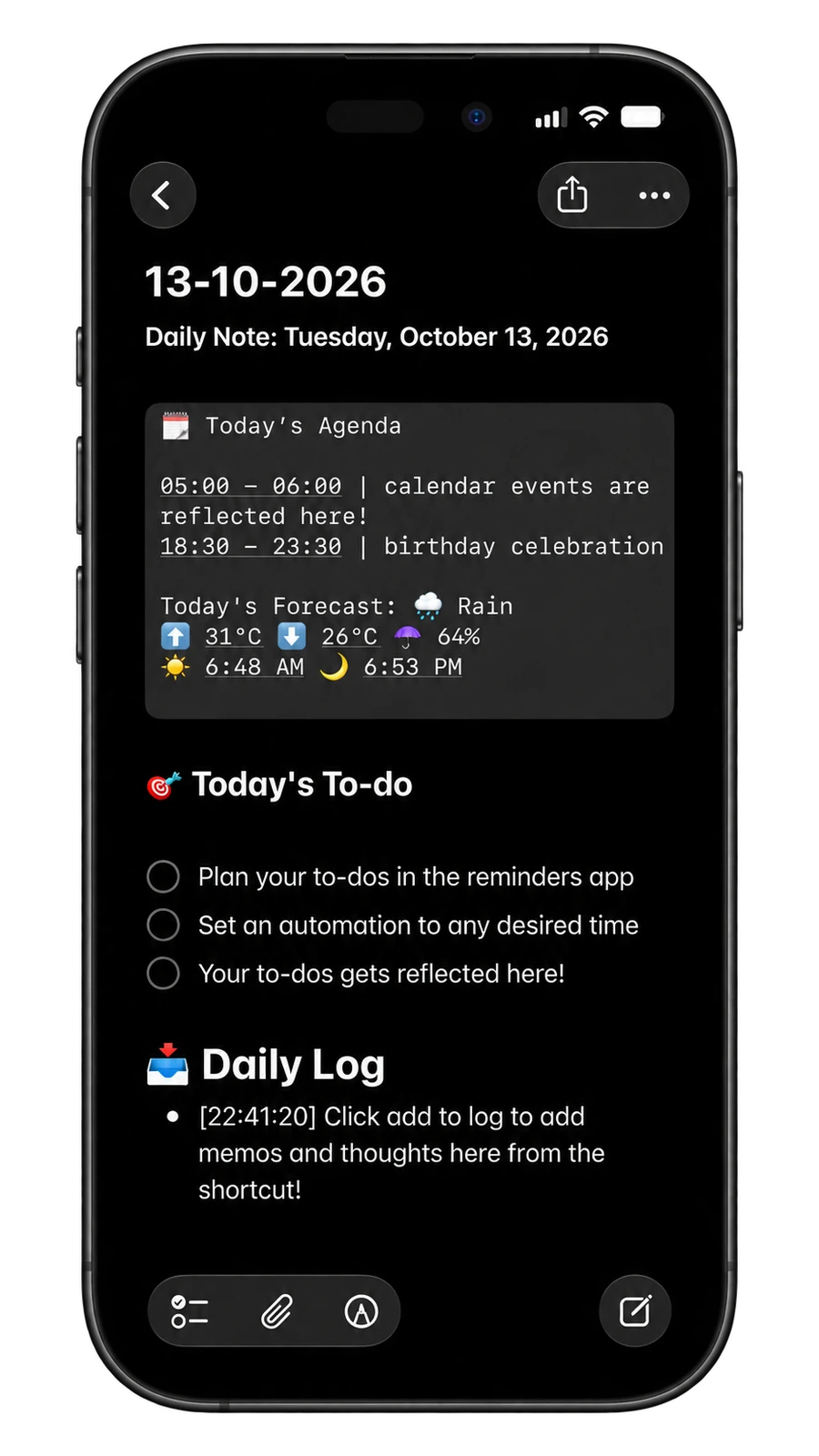
See the day’s agenda, weather, and tasks together in Apple Notes, with a daily log for the thoughts you add.
Keep a thought close.
The Control Centre companion can add a memo to today’s journal or to a note you select.
Start with a blank page.
Use Quick Note in the companion shortcut to add your thought to a new note.
Bring new to-dos along.
Run the companion’s sync action to bring new to-dos into the current day’s journal.
The actual screens.
The everyday workflow.
Explore the previews. Select any image for a closer look.
A question
before you start?
A few things to know about Daily Journal. If something is still unclear, send me a note.
Ask BingAre both shortcuts free?
Yes. Daily Journal and its Control Centre companion are both free to add.
What setup is needed?
Create seven separate lists in Apple Reminders, named exactly Monday, Tuesday, Wednesday, Thursday, Friday, Saturday, and Sunday. Use the capital first letter and spelling shown.
What does the Control Centre companion do?
It adds a memo to today’s journal, adds a memo to a selected note, creates a new quick note, or syncs new to-dos into today’s journal.
Do new to-dos appear automatically?
Use the Control Centre companion’s sync action to refresh the current day’s journal with new to-dos. This is an action you trigger.
Do I need another app or account?
The workflow uses Apple Shortcuts and built-in Apple apps, including Notes and Reminders. No extra third-party app is required.
A small place
to keep your day.
Daily Journal + Control Centre companion · both free
A few other useful things